Losing family photos, important documents, or project files shouldn’t be a “when” but an “if.” Most homeowners rely on a single backup method, either a local hard drive that can fail or a cloud subscription that costs a fortune for terabytes of data. Hybrid cloud storage combines the speed and control of local storage with the off-site safety net of cloud backup. It’s not a new concept for businesses, but consumer-grade options have finally caught up, making it practical for home users who want redundancy without the headaches. This guide walks through what hybrid storage actually is, why it matters for homeowners, and how to set up a system that won’t expensive or require a computer science degree.
Table of Contents
ToggleKey Takeaways
- Hybrid cloud storage solutions combine local speed and control with off-site cloud protection, eliminating the choice between unreliable single backups and expensive cloud-only storage.
- Consumer-grade NAS devices with automatic cloud sync (like Synology, QNAP, or WD My Cloud) provide practical redundancy for homeowners without requiring technical expertise.
- A proper hybrid cloud setup costs $400–$600 upfront for a two-bay NAS with RAID 1 mirroring plus annual cloud subscription fees, saving money compared to expensive multi-year cloud-only plans.
- Implement the 3-2-1 backup rule: keep original files on your computer, a copy on local NAS storage, and another in the cloud to protect against hardware failure and disasters.
- Always test your restore process quarterly by deliberately recovering files from the cloud to verify your hybrid cloud storage system actually works before you need it for real data loss.
What Are Hybrid Cloud Storage Solutions?
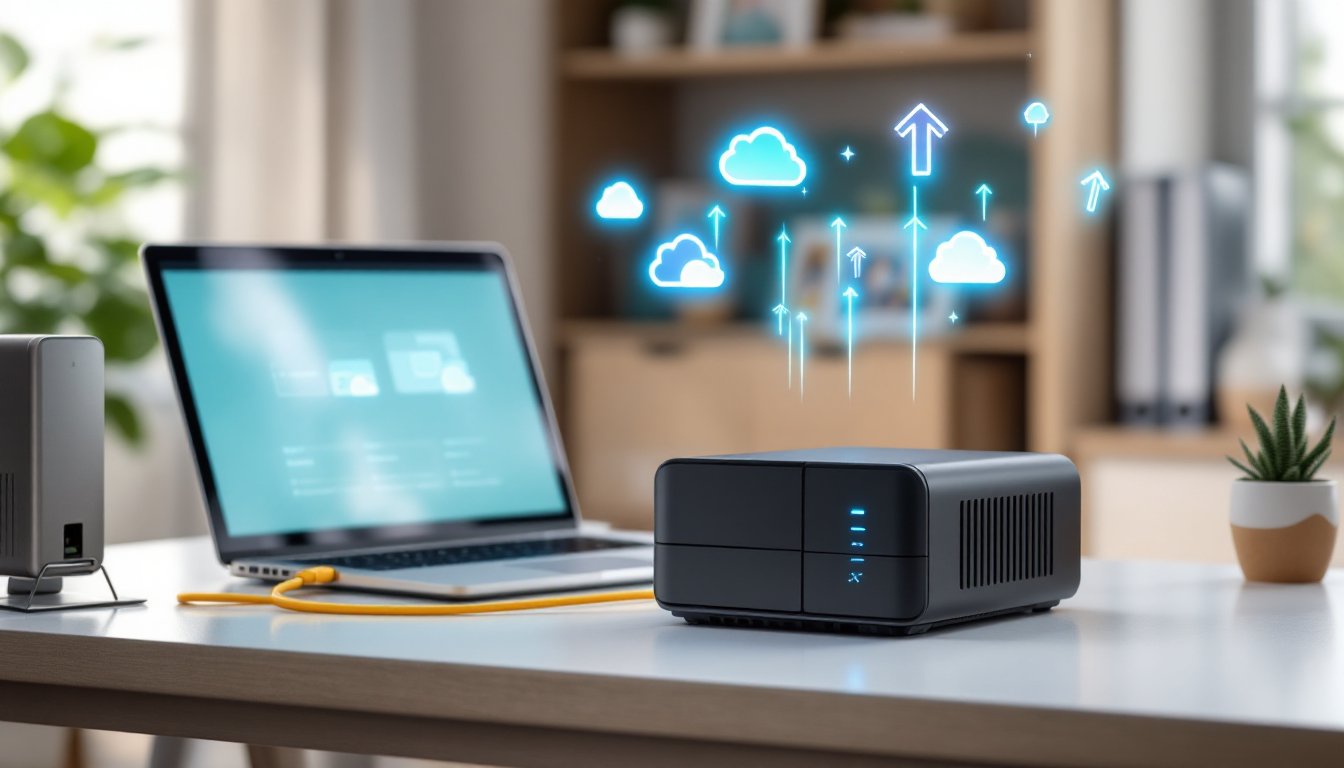
Hybrid cloud storage is a two-tier backup system: files live on a local device (like a network-attached storage unit or external hard drive) and automatically sync to an off-site cloud server. Think of it as belt-and-suspenders redundancy. The local component gives you fast access to files without relying on internet speed, while the cloud portion protects against physical disasters, fire, flood, theft, or a hard drive crash.
Unlike pure cloud storage (Google Drive, Dropbox, etc.), you’re not uploading everything from scratch over your home internet. The local device handles day-to-day reads and writes, then pushes changes to the cloud in the background. Unlike a standalone NAS (network-attached storage), you’re not gambling that a single box in your basement will survive a house fire.
Most hybrid systems use incremental backups, meaning only changed files get uploaded after the initial sync. That keeps bandwidth usage reasonable and speeds up recovery if you need to restore data. Some platforms encrypt files before they leave your network, which is critical if you’re storing tax records or sensitive documents.
Why Homeowners Need Hybrid Cloud Storage
Hard drives fail. It’s not paranoia, it’s statistics. Consumer-grade drives have a 3–5% annual failure rate, and that climbs after the three-year mark. If your only backup is an external drive sitting next to your computer, a power surge or spilled coffee takes out both.
Cloud-only storage has its own pitfalls. Uploading a terabyte of family videos over a residential internet connection can take weeks. Monthly costs add up fast, $10–$20/month per terabyte is common, and those fees never end. If you cancel the subscription or miss a payment, you’re racing the clock to download everything before it’s deleted.
Hybrid storage solves both problems. You get the instant access of local files (no waiting for downloads when you need last year’s tax return) and the disaster recovery of cloud backup. It’s especially valuable for homeowners who:
- Store large media libraries (4K video from vacations, drone footage, raw photo files)
- Run a home business and need reliable file access
- Have irreplaceable documents (scanned family photos, legal records, project plans)
- Want versioning, the ability to roll back to an older version of a file if something gets corrupted or accidentally deleted
According to recent reviews on CNET, hybrid systems are becoming the go-to recommendation for home users who’ve outgrown simple cloud subscriptions but aren’t ready to manage a full server rack.
Best Hybrid Cloud Storage Options for Home Use
Synology NAS + C2 Storage: Synology makes network-attached storage devices that range from two-bay units (around $200) to multi-drive towers. Their C2 Storage cloud service integrates directly with the NAS, syncing files automatically. You pay for the hardware once, then subscribe to C2 based on how much cloud space you need. The DiskStation models run a full operating system (DSM) that handles photo management, media streaming, and even security camera footage alongside backups.
QNAP NAS + myQNAPcloud: Similar setup to Synology, buy the hardware, subscribe to cloud storage. QNAP units tend to offer more RAM and faster processors at the same price point, which matters if you’re running multiple apps (Plex media server, home automation hubs, etc.). The myQNAPcloud service ties into major providers like Amazon S3 or Backblaze B2, giving you flexibility on where your off-site data lives.
WD My Cloud Home Duo + Cloud Sync: Western Digital’s My Cloud line is plug-and-play compared to Synology or QNAP. The Duo model has two drive bays (mirrored for redundancy) and syncs with Dropbox, Google Drive, or OneDrive. It’s less customizable but easier to set up if you’re not comfortable with network configuration. According to testing by Tom’s Guide, the My Cloud Home series works well for households that want automatic backup without a learning curve.
DIY NAS + Backblaze B2: If you’re comfortable building PCs, a used office workstation running TrueNAS or Unraid can cost less than a pre-built NAS and offers more control. Pair it with Backblaze B2 cloud storage ($6/TB/month for data stored, plus download fees). This route requires more setup, drive configuration, network shares, backup scripts, but scales better if you’re managing 10+ terabytes.
All of these options support RAID configurations (mirroring or parity) on the local side, so a single drive failure doesn’t mean data loss. Make sure whatever you pick offers automatic cloud sync, not manual uploads.
Setting Up Your Home Hybrid Cloud Storage System
1. Choose your hardware. For most homeowners, a two-bay NAS is the sweet spot. Buy two identical drives, 4TB or 8TB drives in RAID 1 (mirroring) give you half the total capacity (so two 4TB drives = 4TB usable) but protect against one drive failing. WD Red Plus or Seagate IronWolf drives are designed for 24/7 NAS use: don’t use desktop drives.
2. Connect to your network. Plug the NAS into your router via Ethernet, don’t rely on Wi-Fi. Most units auto-configure with DHCP, but you’ll want to assign a static IP in your router settings so the device doesn’t change addresses and break your backups.
3. Initialize the drives. The NAS setup wizard (accessed via web browser) will walk through formatting drives and choosing a RAID level. RAID 1 is simplest for two drives: RAID 5 or SHR (Synology Hybrid RAID) works for three or more. This step wipes the drives, so don’t skip it assuming they’re ready out of the box.
4. Create shared folders. Set up folders for different file types, Documents, Photos, Videos, etc. Map these as network drives on your PC (Windows: right-click This PC → Map Network Drive: Mac: Finder → Go → Connect to Server). Now they behave like local folders but live on the NAS.
5. Enable cloud sync. In the NAS software, activate the cloud backup app (Synology’s Hyper Backup, QNAP’s HBS 3). Point it at your cloud provider, choose which folders to sync, and set a schedule. Start with off-peak hours (overnight) to avoid choking your internet during the day. Enable encryption if the option exists.
6. Test a restore. Don’t assume it works, deliberately delete a file, then recover it from both the local NAS (should be instant) and the cloud (to verify the sync is actually happening). A backup you haven’t tested is a backup that doesn’t exist.
Safety note: NAS devices run warm. Don’t stack anything on top, and make sure ventilation slots are clear. Some units have fans: keep them dust-free or they’ll overheat.
Homeowners managing large collections of photo storage solutions often appreciate the ability to organize files into albums directly on the NAS, with automatic cloud mirroring in the background.
Cost Comparison: DIY vs. Pre-Built Solutions
Pre-Built NAS (Synology DS220+, for example):
- NAS unit: ~$300
- Two 4TB WD Red drives: ~$200
- Synology C2 cloud (1TB): $60/year
- Year-one total: ~$560
- Annual cost after year one: $60/year (or more if you exceed 1TB cloud storage)
You can scale cloud storage as needed, 500GB costs less, 10TB costs more. The upfront hardware investment is fixed.
DIY NAS (used workstation + TrueNAS):
- Used Dell OptiPlex or HP ProDesk: ~$150 (eBay, local surplus)
- Two 4TB drives: ~$200
- Backblaze B2 (1TB average stored): ~$72/year
- Year-one total: ~$422
- Annual cost after year one: ~$72/year
The DIY route saves upfront but requires comfort with installing an OS, configuring storage pools, and troubleshooting network issues. It also pulls more power, expect an extra $5–$10/month on your electric bill compared to a purpose-built NAS.
Cloud-Only (Dropbox Plus, 2TB):
- $120/year (no hardware)
- Five-year total: $600
Seems cheaper until you need more space, upgrading to 5TB jumps to $240/year. You’re also uploading and downloading over the internet constantly, which can be painfully slow with large files.
For homeowners watching storage deals, Black Friday and Prime Day often bring 20–30% discounts on NAS hardware and drives. Cloud subscriptions rarely go on sale, but some providers (Backblaze, Wasabi) offer discounts for annual pre-payment.
Common Mistakes to Avoid When Implementing Hybrid Storage
Using mismatched drives in RAID. Mixing drive sizes or speeds causes the array to run at the slowest/smallest common denominator. If you start with two 4TB drives, both replacements should be 4TB (or larger, but you’ll only use 4TB). Mixing brands usually works but can cause compatibility headaches, stick with one manufacturer per array.
Skipping the 3-2-1 rule. Hybrid storage covers two locations (local + cloud), but best practice says you need three copies of critical files. Keep the original on your computer, a copy on the NAS, and a copy in the cloud. Some folks add a fourth, an offline external drive stored at a friend’s house or in a safe deposit box.
Not monitoring drive health. NAS software includes S.M.A.R.T. monitoring that warns when a drive is about to fail. Enable email alerts. Replace drives showing reallocated sectors or increasing error counts before they die completely. According to guidance from Digital Trends, proactive drive replacement saves more data than reactive scrambling after a failure.
Over-relying on manufacturer cloud services. Synology C2 and QNAP myQNAPcloud are convenient, but if the company discontinues the service or raises prices, you’re stuck. Use a provider-agnostic solution (Backblaze, Wasabi, Amazon S3) if long-term price stability matters.
Ignoring upload bandwidth limits. Most residential internet has asymmetric speeds, fast downloads, slow uploads. A 1TB initial backup over a 10 Mbps upload link takes about 10 days of continuous uploading. Some providers offer seed drives, you ship them a hard drive with your data, they load it into your account, then incremental syncs keep it current. Worth it for multi-terabyte libraries.
Forgetting to test restores. A backup plan that hasn’t been tested is just a theory. Once a quarter, restore a random folder from the cloud to verify the process works and files aren’t corrupted.
Conclusion
Hybrid cloud storage isn’t overkill, it’s the baseline for protecting files that can’t be replaced. The upfront cost is real, but so is the peace of mind knowing a single disaster won’t wipe out decades of photos or critical documents. Start with a two-bay NAS, mirror your drives, sync to a reputable cloud provider, and test your restores. Everything else is fine-tuning.