Decades of mortgage statements, kids’ report cards, medical records, and faded family photos, they all add up. Most homeowners accumulate filing cabinets full of paper without a clear system for what to keep, what to toss, and what might matter later. Paper deteriorates, floods happen, and finding a single tax form from three years ago can turn into an all-day archeological dig. Digitizing isn’t just about freeing up a closet: it’s about preserving what matters and building a retrieval system that actually works when you need it.
Table of Contents
ToggleKey Takeaways
- Document scanning and storage solutions protect irreplaceable records from water damage, fire, and deterioration while improving daily functionality during tax season and insurance claims.
- Sheet-fed scanners like the Fujitsu ScanSnap handle bulk paper efficiently at 25-30 pages per minute, while flatbed scanners preserve delicate items and photographs, so many homeowners benefit from owning both types.
- The 3-2-1 backup rule—three copies on two media types with one offsite—requires pairing local external hard drives with cloud storage to ensure document survival even during home disasters.
- Searchable PDFs created through OCR enable homeowners to find documents in seconds by typing keywords rather than remembering folder locations, making organization the critical difference between useful digitization and wasted effort.
- A clear folder hierarchy established before scanning (Financial, Medical, Home, Legal, Personal) combined with consistent date-first file naming conventions prevents lost documents and wasted re-scanning.
- Encrypt drives containing financial, medical, or identity documents using BitLocker, FileVault, or VeraCrypt to protect sensitive information if a storage device is ever stolen or lost.
Why Digitizing Your Documents Is Essential for Modern Homeowners
Physical documents face threats homeowners often overlook until it’s too late. Water damage from a burst pipe or basement flood can destroy decades of records in hours. Fire, mold, and simple aging all degrade paper. Digital copies eliminate these risks.
Beyond disaster protection, scanned documents improve daily functionality. Tax season becomes manageable when receipts and statements live in searchable folders instead of shoeboxes. Home improvement projects benefit from easy access to old permits, appliance manuals, and warranty cards. Many photo storage strategies apply equally well to documents, both need protection from physical deterioration and logical organization for retrieval.
Homeowners insurance claims move faster with scanned proof of ownership, receipts, and appraisals. When a claim adjuster asks for documentation, emailing a PDF beats frantically searching filing cabinets. Some insurance providers even offer premium discounts for digitized home inventories.
Regulatory requirements push digitization forward too. The IRS accepts scanned records for audits, provided image quality meets their standards (generally 300 DPI or higher for text documents). Medical providers increasingly offer patient portals, but keeping personal scans of test results and prescription histories gives homeowners control over their own records.
Space savings matter in real terms. A single 2TB external hard drive holds approximately 600,000 pages at standard scan quality, the equivalent of roughly 30 four-drawer filing cabinets. For homeowners tackling basement renovations or garage conversions, reclaiming that square footage translates to project potential.
Choosing the Right Document Scanner for Your Home
Document scanners range from $100 to $600+ for home use, with features that matter more than price tags. The right choice depends on volume, document types, and how often the homeowner plans to scan.
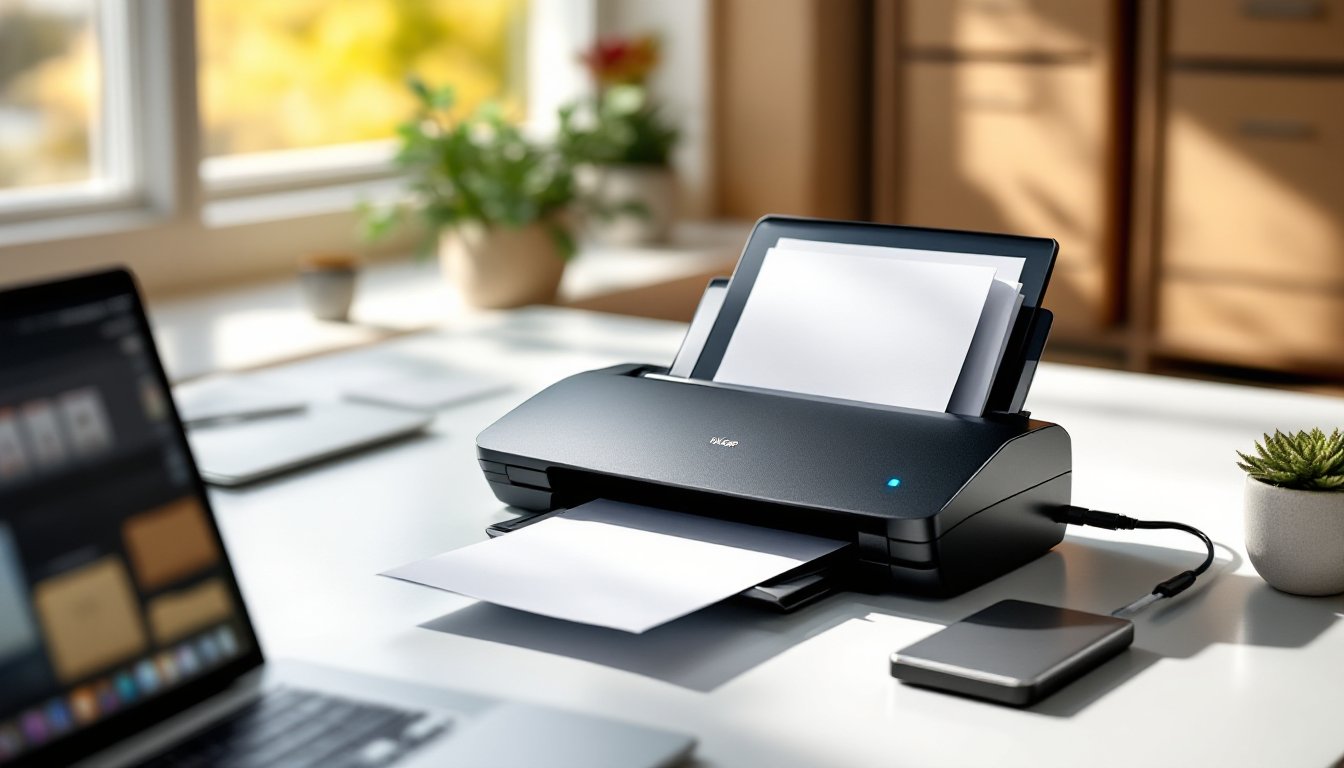
Sheet-fed scanners like the Fujitsu ScanSnap series handle multi-page documents efficiently. They pull pages through automatically, scanning both sides simultaneously (duplex scanning). Most process 25-30 pages per minute, making them ideal for clearing out filing cabinets full of bills, tax returns, and contracts. They struggle with fragile documents, bound materials, or anything thicker than standard copy paper.
Flatbed scanners work like office copiers, place the document on glass, close the lid, scan. They handle delicate items, photographs, book pages, and irregularly sized materials without damage. The trade-off: one page at a time, significantly slower than sheet-fed models. Many all-in-one printers include flatbed scanners, though dedicated photo scanners from Epson or Canon offer higher optical resolution (4800 DPI vs. 1200 DPI) for archival-quality image preservation.
Flatbed vs. Sheet-Fed Scanners
The decision between flatbed and sheet-fed comes down to document condition and volume. Homeowners with boxes of loose standard-sized papers benefit from sheet-fed efficiency. Those digitizing old journals, photographs, or reference materials from bound notebooks need flatbed versatility.
Many serious digitizers own both. A Brother ADS-2700W (sheet-fed, around $230) handles the bulk work, while an Epson Perfection V600 (flatbed, around $250) addresses specialty items. This combination covers most home scanning scenarios without stepping into commercial-grade equipment.
Key features worth paying for include automatic document feeders (ADF) with 50+ page capacity, optical character recognition (OCR) software that makes scanned text searchable, and wireless connectivity for scanning directly to cloud storage without computer tethering. Many modern scanners create searchable PDFs automatically, critical for finding specific documents later.
Skip ultra-cheap portable scanners under $80. They produce inconsistent image quality, jam frequently, and lack the software integration that makes digitization worthwhile. According to guidance from organizing experts, consistent image quality and reliable OCR separate useful scans from future frustration.
Best Digital Storage Solutions for Scanned Documents
Once documents become digital files, they need secure, accessible homes. Storage strategy affects both safety and usability.
Redundancy matters. Professional archivists follow the 3-2-1 rule: three copies of data, on two different media types, with one copy offsite. For homeowners, this translates to local storage plus cloud backup.
Local storage gives instant access without internet dependency. A 2TB external hard drive costs $60-80 and holds massive document collections. Solid-state drives (SSDs) offer faster access and better durability than traditional spinning hard drives, though they cost roughly double per gigabyte. For document storage, speed differences rarely justify the premium, text PDFs load quickly either way.
Network-attached storage (NAS) devices let multiple household members access scanned documents from any device. A basic two-bay NAS from Synology or QNAP runs $200-300 before drives, but provides automatic backup scheduling, version control, and smartphone access. Overkill for most homes, but valuable for households managing rental properties, home businesses, or extensive genealogy research.
Cloud Storage vs. Local Hard Drives
Cloud storage provides offsite backup automatically. If the house burns down, local drives go with it. Cloud copies survive.
Major providers (Google Drive, Microsoft OneDrive, Dropbox) start at $2-3 per month for 100GB, scaling to $10-12 monthly for 2TB. All offer mobile apps for document scanning and automatic upload, useful for capturing receipts or business cards on the go. When considering storage deals, homeowners should compare annual prepayment discounts, which often knock 15-20% off monthly rates.
Privacy-conscious homeowners should know that standard cloud storage isn’t HIPAA-compliant or legally privileged. Medical and legal professionals often recommend encrypted cloud services like SpiderOak or Sync.com for sensitive documents. These cost slightly more but prevent provider access to file contents.
The process of going paperless works best with hybrid storage: an external hard drive for the primary collection, automatically synced to cloud storage for backup. Free sync software like FreeFileSync or built-in OS tools (Windows File History, Mac Time Machine) handle this without monthly subscriptions beyond the cloud storage itself.
Critical safety note: Encrypt any drive containing financial, medical, or identity documents. BitLocker (Windows Pro), FileVault (Mac), or VeraCrypt (cross-platform, free) all provide full-disk encryption. If someone steals the drive, encryption makes data unreadable without your password. This step matters more than drive brand or storage capacity.
Step-by-Step Guide to Organizing Your Digital Document Library
A pile of scanned PDFs isn’t much better than a pile of paper. Organization determines whether digitization pays off.
1. Establish a folder hierarchy before scanning. Most homeowners find success with top-level categories like Financial, Medical, Home, Legal, and Personal. Within Financial, create subfolders for each tax year, bank statements, investment accounts, and insurance policies. Within Home, separate folders for each major project, appliance manuals, and warranties.
2. Use consistent file naming conventions. Date-first naming sorts chronologically: 2026-04-15_ElectricBill_April.pdf files next to 2026-03-15_ElectricBill_March.pdf. Include document type and relevant details: 2023_TaxReturn_Federal.pdf or 2022-06-10_HVAC_Warranty_Carrier.pdf. Avoid special characters (%, &, #) that cause problems on some systems.
3. Scan in batches by category. Tackle one filing cabinet drawer at a time. Sort papers before scanning: toss obvious junk, separate documents requiring different scan settings (photos vs. text), and group by destination folder. This prep work prevents re-handling and eliminates wasted scans.
4. Adjust scanner settings to match document type. Standard text documents scan well at 300 DPI grayscale in PDF format, clear enough for OCR, compact enough for easy storage and email. Photographs and important documents worth archiving (birth certificates, deeds) deserve 600 DPI color scans saved as TIFF or high-quality JPEG before converting to PDF for everyday use.
5. Enable OCR during or after scanning. Most scanner software includes OCR that converts image text into searchable, selectable text. Adobe Acrobat, ABBYY FineReader, and free options like Tesseract all work. Searchable PDFs let homeowners find documents by typing keywords instead of remembering folder locations, the difference between finding a document in 10 seconds vs. 10 minutes.
6. Verify scan quality before destroying originals. Zoom to 200% and confirm text remains readable. Check that page edges aren’t cropped. Many homeowners maintain a “to-shred” box for scanned documents, holding papers 30-60 days before destruction to catch any scanning errors.
7. Back up immediately. Don’t wait until the entire project finishes. After each scanning session, copy new files to both local backup and cloud storage. Lost scans mean re-scanning, wasted time most DIYers can’t afford.
8. Purge the physical originals strategically. Keep original birth certificates, Social Security cards, property deeds, and estate documents in a fireproof safe, digital copies supplement but don’t replace these. Most other documents can be shredded after scanning, though some homeowners keep tax returns and supporting documents for seven years per IRS guidance. The guidance found at Martha Stewart’s site often recommends keeping sentimental items like children’s artwork in original form, even when scanned.
Security matters here too. Shred, don’t just toss. Cross-cut shredders that produce confetti-sized pieces (P-4 security level or higher) prevent identity theft from discarded documents. Expect to pay $50-100 for a home shredder that handles 8-10 sheets at once without constant jamming.
Conclusion
Digitizing documents isn’t a weekend project, it’s a shift in how homeowners manage information. Start with the documents that matter most: current tax years, active insurance policies, recent medical records. Build the habit before tackling decades of backlog. The scanning gets easier, the organization becomes intuitive, and the payoff, finding what you need, when you need it, makes the effort worthwhile.