If you’ve ever watched a 4K timeline stutter to a halt mid-edit or lost hours of work to a failed drive, you know storage isn’t just a spec, it’s the backbone of your entire video workflow. Unlike casual file storage, video editing demands massive capacity, lightning-fast read/write speeds, and rock-solid reliability. A single hour of 4K footage can easily eat 100+ GB of space, and working with multiple projects, proxies, and render files? That number multiplies fast. Building or upgrading a storage setup isn’t just for the pros anymore, home creators need a system that won’t bottleneck their creativity or risk months of content.
Table of Contents
ToggleKey Takeaways
- Video editing storage solutions require specialized drives because a single hour of 4K footage consumes 100+ GB, making standard consumer storage inadequate for professional workflows.
- NVMe SSDs offer the fastest performance at 3,500+ MB/s, making them ideal for active editing, while external SSDs provide portability and internal HDDs deliver cost-effective archival storage in a tiered system.
- A balanced three-tier approach—fast internal NVMe for active edits, external SSDs for project transfer, and external HDDs for archival—optimizes both performance and budget without compromise.
- Proper file organization with date-based naming conventions and metadata tagging prevents workflow delays and ensures projects remain manageable as your content library grows.
- Home creators can build professional-grade storage setups for under $200 by prioritizing a 1 TB NVMe SSD paired with a 4 TB external HDD backup, then expanding incrementally as needed.
- Implement the 3-2-1 backup rule—three copies of data on two different media types with one offsite—to protect months of content from drive failure and data loss.
Why Video Editors Need Specialized Storage Solutions
Video files are storage hogs. A single minute of RAW or ProRes footage can clock in at 5-10 GB depending on resolution and codec. Compare that to documents or photos, most JPEGs sit under 5 MB, and it’s clear that standard consumer storage won’t cut it.
Speed is non-negotiable. Spinning hard drives (HDDs) max out around 150 MB/s, which creates playback lag and sluggish scrubbing on high-resolution timelines. SSDs hit 500+ MB/s, and NVMe drives can push 3,500 MB/s or higher. If the editor’s working with RAW 6K footage, anything slower than an SSD becomes a chokepoint.
Redundancy saves projects. Drives fail, not if, but when. A single drive holding an entire project is a gamble. Editors who’ve lost work to a dead drive learn this lesson the hardest way. RAID arrays or at least a solid backup strategy isn’t overkill: it’s basic project insurance.
Finally, workflow structure matters. Active projects need fast access on internal NVMe or external SSDs. Archived content can live on slower, cheaper HDDs. Mixing those tiers intelligently, fast drives for current work, bulk drives for backups, keeps both performance and budgets in check.
Types of Storage for Video Editing Projects
Choosing the right storage type depends on how files get accessed and how much speed the workflow demands. Here’s the rundown on what works and where.
Internal NVMe SSDs are the gold standard for active editing. These drives connect via M.2 slots directly to the motherboard, delivering read speeds up to 7,000 MB/s on PCIe 4.0 models. They’re perfect for OS drives, software, and current project files. Most modern motherboards support at least two M.2 slots, one for the system, one for media.
Internal SATA SSDs offer a middle ground. They’re cheaper than NVMe, top out around 550 MB/s, and connect via standard SATA cables. They work well for secondary project storage or cache files when NVMe slots are full.
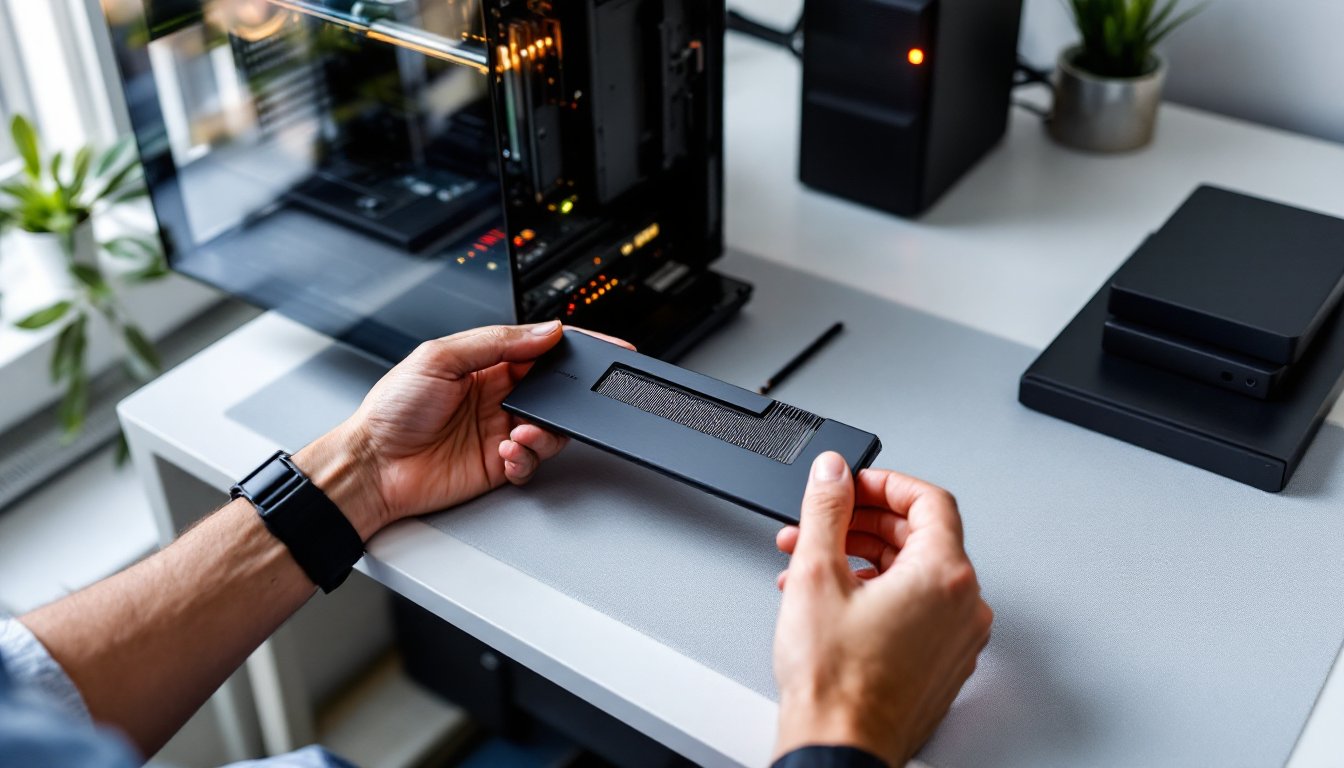
External SSDs provide portability without sacrificing too much speed. Drives using USB 3.2 Gen 2 (10 Gbps) or Thunderbolt 3/4 can hit 1,000-2,800 MB/s. They’re ideal for on-location shoots or moving projects between workstations. Models like the Samsung T7 Shield or SanDisk Extreme PRO offer rugged builds that survive the occasional drop.
External HDDs remain the budget king for archival storage. A 4 TB external HDD runs $80-$120, compared to $300+ for an equivalent SSD. Speed is the tradeoff, expect 120-180 MB/s, but for cold storage of completed projects, that’s fine. Top-rated external hard drives prioritize durability and warranty coverage, which matters for long-term archiving.
NAS (Network-Attached Storage) systems let multiple users or devices access shared project files over a local network. A 4-bay NAS with RAID 5 offers redundancy and expandable capacity, but network speed becomes a factor. A 1 Gbps Ethernet maxes out around 125 MB/s, workable for 1080p, tight for 4K. If going this route, upgrade to 10 Gbps Ethernet or Thunderbolt networking for serious multi-cam or RAW workflows.
Internal vs. External Storage Options
Internal drives deliver the fastest speeds and don’t clutter the desk with cables and enclosures. They’re the first choice for the OS, editing software, and active project media. Installation is straightforward: M.2 drives slot directly into the motherboard: 2.5-inch SATA SSDs mount in drive bays with a SATA cable and power connector.
Downside? Internal storage isn’t portable, and adding drives means opening the case. Most mid-tower cases support 2-4 additional drives, but small-form-factor builds may max out quickly.
External drives shine for flexibility. Swap projects between editing bays, back up to an offsite location, or hand off a drive to a client, all without pulling hardware. Thunderbolt 3/4 enclosures rival internal NVMe speeds if the workstation supports it. USB-C (USB 3.2) is nearly as fast and far more common.
The catch: external drives need reliable enclosures. Cheap adapters overheat or lose connection mid-transfer. Look for aluminum housings with active cooling if pushing an SSD hard. Cable quality matters too, use certified Thunderbolt or USB-C cables rated for the drive’s speed.
For a balanced setup, pair an internal NVMe for active edits with external SSDs for project transfer and external HDDs for archival. That three-tier approach covers speed, portability, and cost-efficiency without compromising on any front.
Choosing the Right Storage Capacity for Your Projects
Underestimating capacity is one of the fastest ways to stall a workflow. Here’s how to size storage based on actual project demands.
Start with footage estimates. Shooting 4K at 100 Mbps (a common bitrate for mirrorless cameras) generates roughly 45 GB per hour. A 10-minute YouTube video might involve 30-60 minutes of raw footage, plus B-roll, music, graphics, and render files, call it 100-150 GB total per finished video. Scale that by monthly output, and a creator posting weekly needs at least 500-600 GB of active project space per month.
Proxies help, but they still take room. Proxies (lower-res editing copies) can shrink 4K files by 75%, but most editors keep both versions until final export. Budget storage accordingly.
A 1 TB NVMe drive works for editors handling 2-4 active projects at a time, assuming regular archiving. Heavy multi-cam or RAW shooters should start at 2 TB. Internal drives in the 2-4 TB range hit a price-per-GB sweet spot, larger capacities exist but cost jumps fast.
For archival, 8-12 TB external HDDs provide bulk capacity at reasonable cost. Two 8 TB drives in a mirrored backup setup (one onsite, one offsite) gives 8 TB of usable space with full redundancy. That’s 50-80 finished projects safely stored.
Don’t forget system and software overhead. Reserve 20-30% of the primary drive for the OS, applications, and cache files. A 1 TB NVMe might show 931 GB usable, and Windows plus Adobe Creative Cloud can claim 150+ GB before a single project file lands. Just as with organizing photo storage systems, planning for growth prevents constant reshuffling.
DIY Storage Setup: Building Your Own Video Editing Workstation
Building a custom editing rig gives full control over storage configuration, and it’s more straightforward than most people think. Here’s the process.
Materials and tools:
- Mid-tower or full-tower PC case with multiple drive bays
- Motherboard with at least two M.2 slots (confirm PCIe 3.0 or 4.0 support)
- NVMe SSD (1-2 TB for OS and active projects)
- SATA SSD or HDD (2-4 TB for secondary storage)
- SATA cables (if using 2.5″ or 3.5″ drives)
- Phillips-head screwdriver
- Anti-static wrist strap (optional but recommended)
Step-by-step installation:
-
Power down and unplug the system. Touch a grounded metal surface or wear an anti-static strap to discharge static before handling components.
-
Install the M.2 NVMe drive. Locate the M.2 slot on the motherboard (usually near the CPU or chipset). Remove the small screw securing the standoff, insert the drive at a 30-degree angle, press down gently, and secure with the screw. Some boards include a heatsink, attach it per the manual.
-
Mount SATA drives in drive bays. Slide a 2.5″ SSD into a bay (most cases have tool-less trays) or screw a 3.5″ HDD into a cage. Connect a SATA data cable from the drive to a motherboard SATA port, and a SATA power connector from the PSU.
-
Cable management. Route cables along case channels and secure with velcro straps. Good airflow prevents thermal throttling on SSDs under sustained writes.
-
Initialize drives in the OS. Boot into Windows, open Disk Management (right-click Start menu), and initialize new drives as GPT. Format as NTFS and assign drive letters.
For external expansion, consider a 4-bay drive dock or NAS enclosure. A USB 3.2 dock lets hot-swap HDDs for quick archival access. Setting one up involves mounting drives into caddies, connecting via USB or Thunderbolt, and configuring RAID if the dock supports it (RAID 0 for speed, RAID 1 for redundancy, RAID 5 for both with three+ drives).
Many home workshop setups benefit from modular storage, the same principle applies here. Build what’s needed now, expand later.
Organizing and Managing Your Video Files Efficiently
Fast hardware means nothing if files are a disorganized mess. A disciplined folder structure and naming convention save hours of hunting through directories.
Folder hierarchy example:
Projects/

├─ 2026_ClientName_ProjectTitle/

├─ 01_Footage/

├─ 02_Audio/

├─ 03_Graphics/

├─ 04_ProjectFiles/

├─ 05_Exports/

└─ 06_Archived/
Date-first naming (YYYY-MM-DD or YYYY_ProjectName) keeps projects sorted chronologically. Within each project, subfolders separate raw media from working files and final renders.
File naming conventions prevent confusion. Instead of “FinalEdit_v3_FINAL_ReallyFinal.mp4,” use “2026-04-15_ProjectName_Export_v03.mp4.” Include dates, version numbers, and descriptive tags.
Metadata and tagging speed up asset searches. Most editing software (Premiere, DaVinci Resolve) supports keywords and color labels. Tag clips by scene, camera angle, or content type during ingest. A 10-second investment per clip saves minutes later when hunting for that one B-roll shot.
Automate backups. Windows File History or macOS Time Machine can handle incremental backups to external drives. For critical projects, a 3-2-1 rule applies: three copies of data, on two different media types, with one offsite. Cloud storage (Backblaze, Google Drive) works for offsite redundancy but uploading terabytes takes time, start backups overnight.
Periodically archive completed projects to slower, bulk storage. Move finished work from the fast NVMe to a large HDD, verify file integrity, then clear the working drive. Same principle as clearing out a workshop after a build, everything’s easier when the active space isn’t cluttered. Managing digital files shares tactics with physical storage systems, just without the lumber.
Budget-Friendly Storage Solutions for Home Creators
Professional-grade storage doesn’t require a studio budget. Smart choices and strategic upgrades keep costs down without sacrificing performance.
Prioritize the right drives. A single 1 TB NVMe SSD ($80-$120) handles active projects far better than a pile of cheap external HDDs. Pair it with a 4 TB external HDD ($80-$100) for backups, and the core setup runs under $200.
Buy during sales. Storage prices fluctuate. Black Friday, Prime Day, and back-to-school sales often knock 20-40% off drives. Tracking storage deals can cut costs significantly, just verify the model and warranty before buying.
Reuse old hardware. Upgrading from a 500 GB SATA SSD to 1 TB NVMe? The old drive becomes secondary storage or a dedicated cache disk instead of e-waste. External enclosures ($15-$30) convert internal SATA drives into portable backups.
Skip unnecessary RAID complexity. RAID 5 or 10 arrays offer speed and redundancy but require matched drives and a capable controller. For solo creators, two mirrored external drives (manual backup) costs less and avoids rebuild headaches if one drive fails.
Open-box and refurbished drives from reputable sellers (manufacturer refurbs, not third-party) can save 15-25%. Check warranty terms, most refurbs carry 1-year coverage vs. 3-5 years for new drives. For archival HDDs where writes are infrequent, refurbs are lower risk than for active SSDs.
DIY enclosures beat pre-built externals. Buying a bare NVMe or SATA SSD and pairing it with a USB or Thunderbolt enclosure often saves $20-$50 vs. branded portable drives with identical internals. Enclosures also let upgrading the drive later without tossing the whole unit. Many external drive reviews highlight modular setups as cost-effective long-term investments.
Finally, grow incrementally. Start with one fast internal drive and one backup external. Add capacity as projects pile up, not preemptively. A modular approach spreads cost over time and avoids overspending on storage that sits empty.
With the right mix of speed, capacity, and backup strategy, even home creators on a tight budget can build a storage setup that rivals mid-tier studios, without the enterprise price tag.